First Time Setup
Initial Setup
After installing OBS Streamdeck Controls you will need to provide information regarding your OBS WebSockets password, names of your Microphone, Desktop, and alert overlay sources, authorise the application with twitch, and set your safety options.
Run the following command on a terminal/command line to launch a setup wizard:
obs-streamdeck-ctl setup
Setup Wizard
Initial Page
If you haven’t already installed OBS Websockets, the Setup Wizard will take you to their download page.

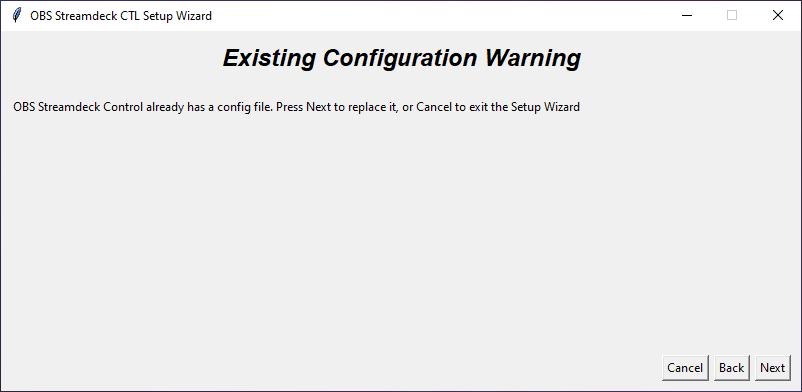
Pre-Existing Configuration Check
If you have already created a configuration file the following screen appears.
OBS WebSockets Password
If you configured OBS WebSockets server with a password, please provide it on this screen. Please make sure that you have OBS open and OBS WebSockets server configured before pressing next

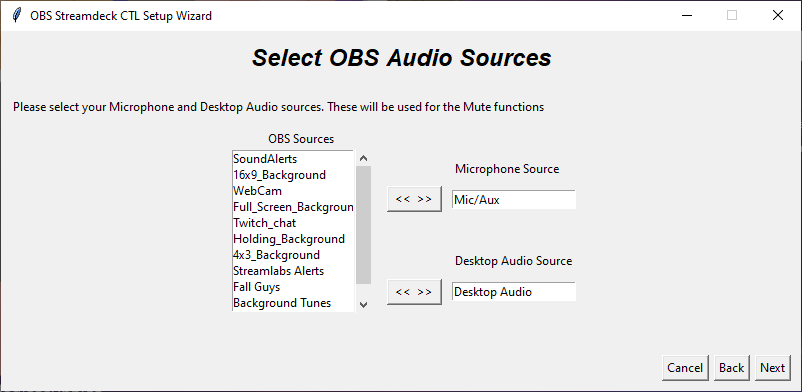
Audio Sources
To use the Mute functions, select your Microphone and Desktop audio sources. The default sources will be automatically selected, but you can replace these with alternate sources if required.
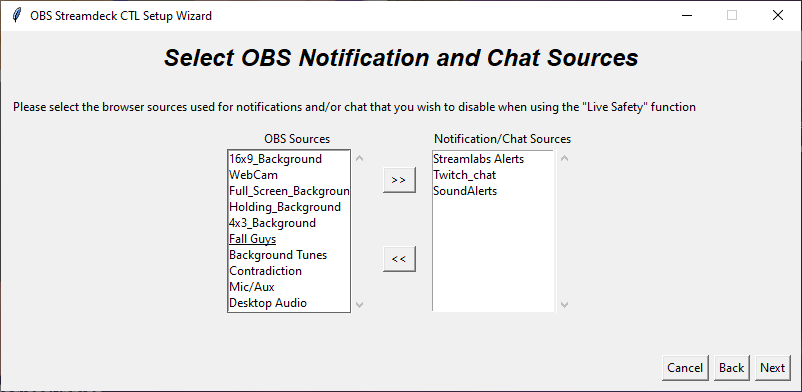
Overlay Sources
For the Live Safety function, select the browser overlay sources from OBS that you would wish to disable when enabling Live Safety.
Twitch Authorisation
The Live Safety features requires you to authorise the OBS Streamdeck CTL program to use your account. Add your channel name to the box and click next to launch a new Web Browser tab and log into Twitch. Once the sign in is complete, return to the Setup Wizard.

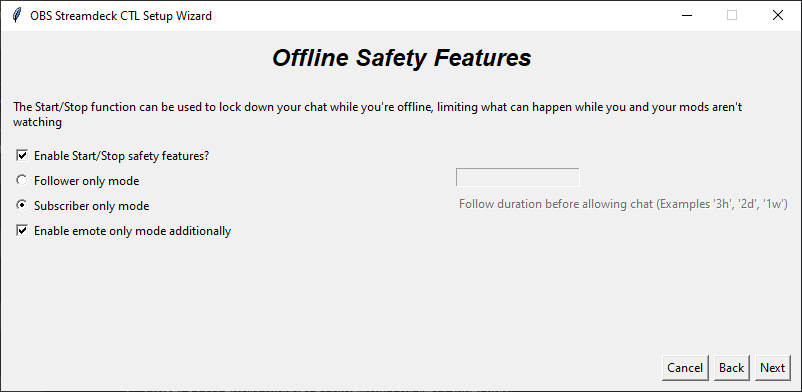
Offline Safety Features
If you wish to enable offline safety features for your chat channel using the Start/Stop function, use this screen to select the required features.
Live Safety Features
For the Live Safety function for your chat channel, select the required features.

Additional Live Safety Features
You may also enable additional features for the Live Safety function

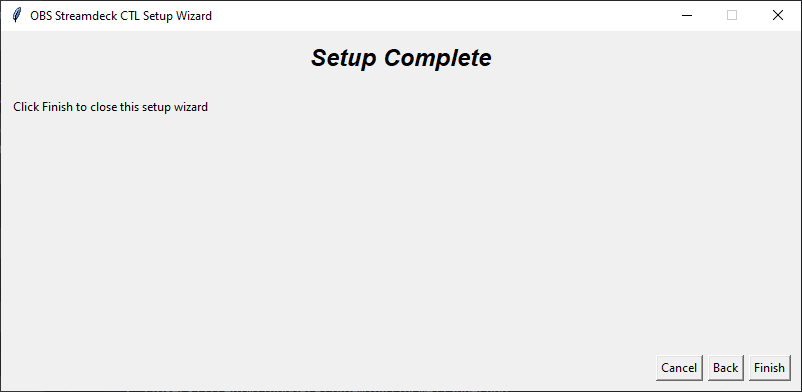
Save Configuration
The Setup Wizard is now complete, click Finish to save your configuration.